Showing posts with label latex. Show all posts

Wednesday, October 24, 2012

Using Hazel for the automatization of the conversion: Markdown -> Latex -> PDF

Using Hazel for the automation of the conversion: Markdown -> Latex -> PDF
As I have explained in my last posts, I am trying to craft a writing chain that would allow me to write in Markdown and easily convert this readable text to Latex and PDF. I can even download the final PDF file on my iPAD using a Dropbox folder.
Hazel is a very nice automatization system that I was planning to explore more in details, and it indeed solves a lot of problems in this case.
My chain works as the following (this completes my previous message):
  1. I write my text in IAWrite (under OSX or iOS) and they get saved in the iCloud (suppose that the file is called mytext.md).
  2. On the desktop, these files appear in the mobile documents folder (~/Library/Mobile Documents/74ZAFF46HB~jp~informationarchitects~Writer/Documents). I use a first Hazel script (see Figure 1), attached to this folder, for copying this file to a Dropbox folder, as soon as a new version is saved. 
    Fig. 1: Copying the .md file
  3. When the .md file is copied, other Hazel scripts, attached to the destination Dropbox folder, start to play.
  4. One script converts the file to .html and .opml formats. This script calls multimarkdown for converting the copied markdown file to these formats (see Figures 2–3).
    Fig 2: Running the script for converting to HTML and OPML
    Fig 3: The script for calling multimarkdown
  5. Another script (see Figures 4–5) converts the file to Latex format (only if the md file contains the meta tags that are necessary for obtaining a complete Latex file at the end of the conversion – otherwise Multimarkdown converts Latex snippets that cannot be compiled by Latex).
    Fig 4: Calling the script for converting to Latex
    Fig 5: The script that calls multimarkdown
  6. A last script (see Figure 6) converts the Latex file obtained in the previous step to PDF, using latexmake. Latexmake is a Perl script that automatically runs the necessary operations for converting your tex file to PDF (the final format I have chosen here). Moreover, I have discovered that multimarkdown is not able to correctly convert accented characters in the meta tag fields. So, I have problems if the title, for example, is in French. For correctly converting these Unitype characters, one needs to compile the document using xelatex, and not pdflatex. The full Bash script I use can be downloaded below (including some commented instructions that was useful for debugging it, and that could be useful in some other contexts).

    Fig 6: Calling the script that runs latexmake
Download the script
  

Monday, October 22, 2012

Using markdown as a lightweight LateX editing support on iPad and iCloud

I have been looking at the ways of editing LateX files on the iPad. There are already interesting LateX editor (TexTouch, TexWriter etc.), but I find them quite heavy to use yet, and Latex files are not very nice to decode on the small screen.
Markdown is a much simpler and readable tagging language invented by John Gruber (aka Daring Fireball). I have been tempted to play with it several times in the past, without really getting there. My preferred Latex editor is Lyx now, but we are really not ready to get an iPad version of this very nice editor. So Markdown has seemed as an interesting possibility to explore for writing Latex in a nice editor as iAWriter. Since MultimarkDown offers quite efficient translation of Markdown to Latex (including the equations and figures), as week as other formats like HTML and OPML (useful for importing in Freemind).
Here is my automatic setup for this workflow
  1. synchronizing iAWriter documents between the iPad and my laptop using iCloud;
  2. copying the file from the iCloud folder (~/Library/Mobile Documents/74ZAFF46HB~jp~informationarchitects~Writer/Documents) to a Dropbox folder each time it has been updated (with Hazel);
  3. converting the .md file in the Dropbox folder to Latex, HTML and OPML using Multimarkdown in Hazel, a soon as a new version if copied there;
  4. converting the Latex to pdf using by running pdflatex+bibtex+pdflatex twice).
For the third step, I had to adapt the Multimarkdown latex support files to create a standard article export, instead of the memoir one used by default.
Now I can edit my documents on the iPad or on the MacBook using iAWriter and they get automatically synched and converted. If my MacBook is on, I can even get back the compiled PDF back on the iPad, using a Dropbox access (through GoodReader, for example).
I can give more details for this process if you ask for it in the comments.

Friday, December 30, 2011

Graphical interfaces (apps) for launching ipe7 and batch converting drawings from ipe6 to ipe7

As promised below, I propose here some small graphical interfaces created with Platypus for:
  • Launching ipe. ipe7.app can be launched to open pdf/eps/ipe files created with ipe7. It contains the necessary environment variables (pointing to the standard TeX pdflatex path under TexLive - /usr/texbin/pdflatex) to allow the compilation of Latex text snippets. You can also associate .ipe files with this app and directly open them from finder. You can also right-click on an ipe7 pdf/eps file and « open with » this app.
  • Batch converting ipe6 files. ipe6to7-BatchConvert.app will open a small dropping windows on which you can … drop pdf/eps files created by ipe6. For each dropped file, it will save in the same folder as the dropped files two files with the same name as the dropped file (lets assume, filename.pdf), but different extensions: filename.xml is the extracted file;,you do not really need it and delete it if you desire; filename.ipe is the one you want. You can open it in ipe (using ipe7.app, for example ;-) ).
  • Converting and opening a single ipe6 file. ipe6to7-ConvertOpen.app will also open a dropping window where you will be able to drop a single ipe6 file (pdf or eps). The app will create the corresponding .xml and .ipe files in the same folder as the original file, and directly open the .ipe file in ipe7 for editing.
You can download these small apps from my web site. You will get a small zip archive that you can uncompress in any folder and copy in your Applications folder (but you do not need to, you can launch them from anywhere). I have tried to design them relatively generic, but ave not tried on another Mac. I have at least one small operation that is specific to my configuration, but it should not be blocking for you. Let me know if you meet any problems with these tools.

Note: These tools assume that you have installed on your Mac OSX:
  • ipe7 and ipe-tools using MacPorts (please see below my post on this installation process);
  • TexLive (a recent version, I use 2011).

Installing ipe 7 under OSX Lion

After having tried other solutions for my pdflatex graphics, I am reconsidering again ipe (see below my post about this very nice and useful program that allows you to put latex instructions in your drawings). My initial wanderings were motivated by the unavailability of a reliable ipe version under Snow Leopard. I have been able to compile a 6pre28 version (see below), but it was nor as reliable as I desired and it became completely unusable as soon as I have switched to Lion (mainly because of the Qt framework version I have used to compile it). I have also played with versions available in MacPorts and this is the solution I will propose to you for installing ipe7 under Lion.

Before starting: You will need to install XCode from the Mac AppStore and Commandline Tools for Xcode from the Apple developers website (you must register, but the registration is free and you can use your normal Apple/iTunes identity).

A/ Installing MacPorts. First of all, you must download and install MacPorts. It could look daunting at a first look, but the process is quite painless (if you already have MacPorts on your Mac, go to the step B below):
  1. You first download the dmg archive corresponding to your system (Lion for me) from the install page of Macports;
  2. Double-click on the downloaded MacPorts-2.0.3-10.7-Lion.dmg file to mount it in Finder and open it in the finder (I assume that you know how to use a dmg file);
  3. Switch in Finder to the folder corresponding to the dmg volume and double-click on c to launch the installer. You follow the instructions (they are very straightforward). MacPorts installs itself, by default, in /opt/local folder on your system hard disk.
  4. Once the installation finishes, restart your Mac to be sure that everything (PATH and all will be correctly fixed).
  5. When your system is back, open a Terminal session and type: « sudo port selfupdate » to update the repository of your macport installation with the list of the most recent packages (you will have to type your administrative password for this).
B/ Installing ipe and and ipe-tools. You are now ready to install ipe :
  1. You can check the availability of ipe, by typing « port search ipe »;

  2. You will get the list of all packages that have « ipe » as a part of their name. The two packages that interest us are: ipe @7.0.14 (graphics) (The Ipe extensible drawing editor, the main program) and ipe-tools @20110916 (graphics) (Tools for the Ipe extensible drawing editor, utility tools for converting old ipe drawings to ipe7 - see below about this point).

  3. You install them by typing in the Terminal:

    • sudo port install ipe

    • sudo port install ipe-tools

  4. The installation process will download other all necessary MacPorts packages, and it will take some time depending on the sped of your internet connection and of your Mac. If ever the process stop, you just relaunch the installation instruction. MacPorts will in general give you tips for solving the problem, if you meet any (generally it just works, you must be patient, that’s all).

  5. You will have a bunch of command in the /opt/local/bin folder now, and the ones which interest us are:

    • ipe (the main program, ipe7);

    • ipeextract (the utility for extracting ipe instruction from ipe created PDF or EPS files -> ipeextract myfile.pdf gives myfile.xml as output);

    • ipe6upgrade (the utility for upgrading ipe6 drawings to ipe7 format -> ipe6upgrade myfile.xml gives myfile.ipe as output);

    • These programs are supposed to be launched in the Terminal, but I have created solution for launching them from the Applications menu (using Platypus - see below; I will do another post on this point).

    • MacPorts will also install a MacPorts menu in your Applications menu. There will even be an « ipe » item in this menu and it will launch the program. You will be able to draw with it, but, since it does not correctly import the environment variables, you will not be able to run Latex from it. Everything works better if you launch ipe from the command line (or if you use the utilities I have developed using Platypus).

  6. Now you have a working version of ipe7 on your Mac. Have fun!

Tuesday, December 14, 2010

LyX 2.0.0 beta 2 released

starLaTeX Community News
10 décembre 2010 16:24
by mailrobot@latex-community.org (Stefan_K)

LyX 2.0.0 beta 2 released

The second beta version of LyX 2.0.0 has been released.

News provided by


The second beta version of LyX 2.0.0 has been released. Testers of the first beta are encouraged to test the new version.
The current stable release for any serious work remains 1.6.
For a list of new features have a look at a previous blog post or visit

This text is available in German. Dieser Text ist auch in Deutsch verfügbar.


LaTeX
LaTeX Community News 10 décembre 2010 16:24 by mailrobot@latex-community.org (Stefan_K) LyX 2.0.0 beta 2 released The second beta version of LyX 2.0.0 has been released. News provided by The second beta version of LyX 2.0.0 has been released. Testers of the first beta ar ... http://yildizoglu.posterous.com/lyx-200-beta-2-released My Posterous: http://yildizoglu.posterous.com {{hash_tags}}

Tuesday, August 10, 2010

Compiling Ipe 6.0pre32 on Mac OS X 10.6 (Snow

Using these instructions proposed by Sherif Ghali on the ipe mailing list, I have been able to compile it for OSX 1.6.4. Thanks a lot Sherif!
You can read Sherif’s instructions on the IPE mailing list archives.

Thursday, September 10, 2009

Sumatra: Quick PDF viewer for Windows


If you use pdfLaTeX under Windows, you are maybe tired of waiting Acrobat reader to open, each time you compile your document and want to check the preview. I like Acrobat for its professional features but I rarely need them. For all other occasions where I just want to quickly check a PDF file, Acrobat is just a pain to launch.
I have tested FoxReader in the past but I was not fullt happy with it. I think that I have now found the perfect quick PDF reader, thanks to a post in the Lyx's users-forum: Sumatra PDF Reader. It has even a full screen mode that works quite well (even Acrobat's better fills the screen). It gets along quite well with any LaTeX editor (Lyx, TexMaker, Scientific Word, etc.).
It is also quite easy to drive using keyboard shortcuts, as you can learn this in the "manual".

Friday, June 19, 2009

A very nice and free text editor: Notepad++


Notepad++ is a free text editor with a lot of very useful functionality and it has replaced PSPAD for me.

You can edit source code in many languages, benefitting from syntax highlighting and auto-insertion of the main commands.

It places itself in the context menu of the explorer, for facilitating the quick opening of any text files from a right click in the explorer. It is difficult to exhaustively indicate all its functions.

It is based on the Scintilla platform; it is both very easy to use and very powerful.

Here are the features of Notepad++, as indicated on the web site:

  • Syntax Highlighting and Syntax Folding
  • WYSIWYG
  • User Defined Syntax Highlighting
  • Auto-completion
  • Multi-Document
  • Multi-View
  • Regular Expression Search/Replace supported
  • Full Drag 'N' Drop supported
  • Dynamic position of Views
  • File Status Auto-detection
  • Zoom in and zoom out
  • Multi-Language environment supported
  • Bookmark
  • Brace and Indent guideline Highlighting
  • Macro recording and playback

     
Link: http://notepad-plus.sourceforge.net/uk/site.htm

Wednesday, February 25, 2009

ChkTex with LyX and Miktex 2.7 under Windows XP

ChkTeX is a LaTeX utility for... checking your Latex syntax. It is maintained by Baruch Even.
LyX can use ChkTex utility. But Miktex does not come with this utility.

I propose here a way to activate this functionality using the chktex binary that is distributed in the TeXLive LaTeX system. This is quite simple indeed.

I assume that you have installed Miktex in the "C:\MiKTeX2.7" folder.

First download the chkTexFiles.zip archive from my web server. It contains the necessary files for the installation of chktex under Miktex.
This archive contains the following files:
  • .chktexrc
  • ChkTeX.exe
  • tl90geturl.dll
  • tl90gnu.dll
  • tl90kpse.dll
The first file (.chktexrc) is the chktex configuration file. You must put it under in the following folder: "C:\MiKTeX2.7\tex\chktex"
The other four files are the executable for chktex and the necessary libraries. You must put them in the folder C:\MiKTeX2.7\miktex\bin.

You must now tell LyX how to find these files.

You activate "Tools/Preferences" menu item in LyX, and in the Output/Latex item in the left menu, you must give the following command for ChkTex:
ChkTeX.exe -l "C:\MiKTeX 2.7\tex\chktex\.chktexrc" -n1 -n3 -n6 -n9 -n22 -n25 -n30 -n38
I must admit that I have not dug all the options for ChkTeX, you can probably finetune them using the ChkTeX documentation but these default options work on my installation. If you execute chktex -h in a Dos box, you will get an output that will indicate the role of different options.

Once you save the configuration (do not forget to click on the Save button in the preferences box ;-) ), you can execute "Tools/Check Tex" menu item and it will indicate the potential problems with your LaTeX file. Don't be afraid by the results! :-)

ChkTeX source files are also available from CTAN.

Sunday, February 15, 2009

Lyx and Sweave under Windows XP

These instructions propose a solution for making Sweave work under Windows XP, using Lyx 1.6.1 and R-project 2.8.x.

Adapted from the instructions provided by Paul Johnson and Cheng-shan (Frank) Liu:
(see http://n2.nabble.com/Converter-failure-with-Sweave-td479669.html)

These instructions correct some small problems that were impeding the original instructions from working under the recent version of R that I use. I also take into account the fact that the default installation folders of R and Lyx are under Program Files, a path that contains a space, and can cause problems.

We will suppose that Lyx 1.6.1 is installed in C:\Program Files\LyX16 and R in C:\Program Files\R\R-2.8.1 (their default folders under Windows).
  1. Place noweb.sty and sweave.sty (part of the R installation - see the share\texmf subfolder of R, see the next instruction) in a folder that can be find by your Latex installation (under texmf-local for example).
  2. Copy the content of the C:\Program Files\R\R-2.8.1\share\texmf folder in the previous folder or in another folder under your texmf tree.
  3. Refresh the file catalogue of Latex (execute mktexlsr for TexLive in a Dos command box, for example). You can now check the placement of these files by executing kpsewhich noweb.sty in a Dos command box.
  4. Reconfigure Lyx (go to Edit-> Reconfigure). Check if you have document class "article(noweb)" or "article(Sweave noweb)" (in Document-> Settings->Document class). If not, you will need to reinstall Lyx.
  5. Create a batch script called Rweave.bat and put it in the folder C:\Program Files\Lyx16\bin\. You can create this file using notepad or any other text editor (PSPad is a very nice and free one). The file should contain a one line instruction:
    "C:\Program Files\R\R-2.8.1\bin\Rterm" --no-save --args "%1" < "C:/Program Files/LyX16/bin/MakeSweave.R" > "%1.log"
  6. Create a R file MakeSweave.R with the following lines and put it in C:\Program Files\Lyx16\bin\:


    library(tools)

    args <- commandArgs() filename <- args[length(args)] Sweave(filename) basename <- sub("\\.(Rnw|Rtex|nw)$", "",filename) texi2dvi(paste(basename, ".tex",sep=""), pdf=TRUE)


  7. You must now configure in Lyx the converter for noweb files. Go to Edit->Preferences->File Handlers->Converters. In the "From" pulldown, choose Noweb. In the "To" pulldown, choose PDF (pdflatex).In the box called "Converter" type "Rweave $$i" without the quotation marks. If necessary, click the “Modify” button and save the new command.
  8. You can now test your installation by opening an example file that contains R scraps. For example Paul Johnson's Gamma distribution lyx document.
    You can typeset this document using the pdf icon and the resulting file should open in the acrobat viewer you have configured in Lyx.
    You should be able to read the results of computations and see the plots.
Links:

Saturday, February 14, 2009

A free and powerful text processor : LyX


LyX is a nearly WSYWIG front end for Latex. It constitutes a very credible open source alternative to my other preferred (commercial and quite expensive) Latex editor (Scientific Word).

I have been following LyX's development for some years, without being fully convinced by its facilities. I consider that it now constitutes a very useful front-end to Latex: it is very stable and it fully interfaces with all the facilities characterizing Latex (typesetting mathematics, bibliography management, cross references, graphics, integrating results of statistical computations using R-Project - thanks to the Sweave interface, etc). It definitely offers today more functionality than Scientific Word (see below).
As a consequence, I do not have any reserve in advising you to test LyX, I think you will love it. Binary versions are available for all plateforms (Windows, Linux, Mac OS X).

Web site

Wiki

Monday, August 18, 2008

Editing Latex Files under Windows with LatexEditor

Another very interesting tool for editing and compiling Latex files under Windows is LatexEditor (LED). It has the advantage over Scientific Word of being free.


It is not WYSIWYG or WYSIWYM (WhatYouSeeIsWhatYouMean) but it included a DVI viewer that can show the compiled document just next to the Latex source window.
LED also has many customizable tool bars (and you should customize them because the default configuration is not really as useful as what you get when you configure them to your needs) that lighten the burden of text typing .
It also integrates quite powerful spell check dictionaries and thesaurus. It can also convert files between different code pages during the opening and saving of the files: you can have an 8-bits version with accents on the screen (allowing easy spell check and readibility) and keep on the hard disk the 7-bits version where é is coded, as usual in Latex, \'{e}. You must customize filters to obtain such functionality (see, for example, the filter for French characters I have proposed on the LED support forums).

Thursday, April 06, 2006

Editing LaTeX files under Windows: Scientific WorkPlace


This one is not a freeware or open source (it is even quite expensive - especially in France) :-( but I find that SWP is the most powerful, compatible and user-friendly LaTeX editor that we actually have. There are other open source competitors like the very beautiful TeXMacs or Lyx , but he first is not as compatible as SWP and the second is not yet as flexible as SWP, especially concerning the editing of mathematical expressions. Another nice open source but not at all WYSWYG editor is TeXnicCenter.

SWP can save your files in a compatible format that is called "portable latex" and you can easily compile your files using a standard LaTeX motor (I, for example, use Miktex instead of the specific compiler that comes with SWP: TrueTex).

Mackichan provides two versions of this editor: Scientific Word (the editor only) and Scientific Workplace. The workplace version is more expensive because it comes with a algebraic computation system: Mupad. If you have an official version of Maple, you can also use the kernel provided by the latter (I find it more powerful by the way). In fact I do not possess a complete copy of Maple but I have conserved the last kernel that I have had with an old version of SWP (SWP was used to come with Maple) and I configure SWP for this kernel and this sea tup perfectly works. As consequence, I can do computations or plot expressions directly from SWP.

Sunday, April 02, 2006

Drawing figures for LaTeX - jpicEdt - Java Picture editor


jPicEdt
is a very user-friendly open source software for creating and editing your drawings for LaTeX documents. Its main strength is, in my opinion, its capacity to generate drawings based on the very nice package PSTRICKS. This is gives a very powerful environment for creating sophisticated drawings.
From the web site (www.jpicedt.org):
jPicEdt can generate LaTeX, eepic and PsTricks code from a user-friendly graphical interface! This may include:

* Every graphical element allowed by the picture environment commands: lines, arrows, circles, boxes.
* Emulated elements, for example lines of any slope (which LaTeX doesn't support natively), circles of any size, ellipses, arcs and polygons. This makes a strong use of the \multiput command.
* Nearly every object allowed by the epic/eepic packages (excluding grids and textured filling): dashed lines, filled (whitened, blackened or shaded) ellipses or polygons, arcs,... Using this package is optional.
* As of version 1.3.2, nearly every object allowed by the pstricks.sty package (this include : filling with colours, hatches, textures, setting various stroke parameters...). Support for pstnode.sty and other related packages is underway.

jPicEdt can parse LaTeX files that include a \begin{picture}...\end{picture} (or \begin{pspicture}...\end{pspicture}) block, and is able to interpret a great deal of commands, either LaTeX-, PsTricks- or eepic-compliant (this allows in particular to load files generated by GnuPlot with a gset term eepic command).
jPicEdt is written in JAVA. As a result, it can run on any platform where a JVM (Java Virtual Machine) is installed (nearly every Unix flavors, plus Window 9x/2000/XP and MacOS, at least...)


If you configure jpicEdt for compiling the drawings with LaTeX and dvips, you can very easily convert them to PDF for also using them with PDFLaTeX.

Friday, March 31, 2006

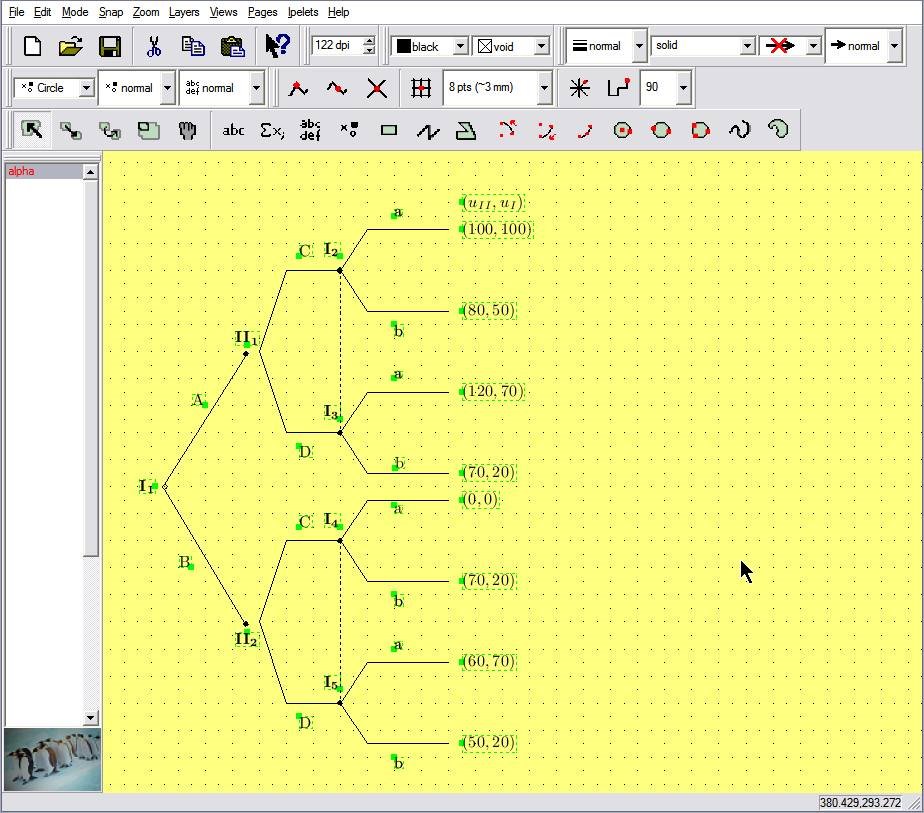
Drawing figures for Latex - Ipe extensible drawing editor


Ipe extensible drawing editor is a very nice tool for drawing figures for LaTeX. It is developed by Otfried Cheong. The source code and the binaries for Windows and Linux can be downloaded from ipe.compgeom.org.

The features of ipe are (from the web site):

* Entry of text as LaTeX source code. This makes it easy to enter mathematical expressions, and to reuse the LaTeX-macros of the main document. In the display text is displayed as it will appear in the figure.
* Produces pure Postscript/PDF, including the text. Ipe converts the LaTeX-source to PDF or Postscript when the file is saved.
* It is easy to align objects with respect to each other (for instance, to place a point on the intersection of two lines, or to draw a circle through three given points) using various snapping modes.
* Users can provide Ipelets (Ipe plug-ins) to add functionality to Ipe. This way, Ipe can be extended for each task at hand.
* The text model is based on Unicode, and has been tested with Korean, Chinese, and Japanese.
* The UI is implemented using the portable toolkit Qt, and so can be compiled for Unix, Windows, and Mac OS X (see below).
It can save its figures in the EPS (encapsulated Postscript) format for using with dvips or in the PDF format for using with pdflatex.

Ipe is not very simple to use since it has some special tricks (for example the transition between different modes can be cumbersome sometime), but it is very powerful for drawing even complex figures for LaTeX and it is now my main drawing software.